This article is for AP Assist users who are prompted to enter an Activation Code upon accessing AP Assist, and provides instructions about what to do when presented with this prompt:
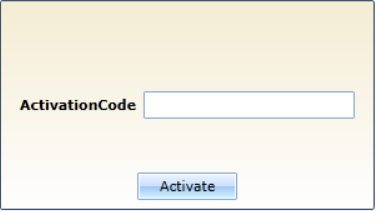
Your Activation Code is shared between all AP Assist users in your organization and may be reused an unlimited number of times. If you have previously entered an Activation Code in this prompt, you may re-enter the same code again. If you do not know the Activation Code for your organization, you may reach out to our Technical Support team to retrieve it.
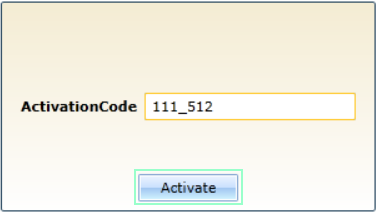
- Enter your Activation Code in the textbox, and press the Activate button:
- When prompted to increase storage space for Microsoft Silverlight, click 'Yes' to accept this prompt:
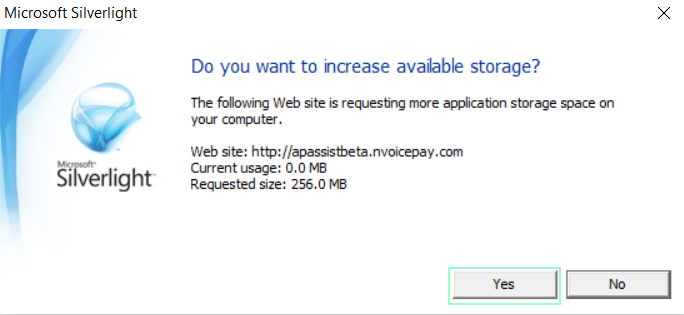
In most cases, this will be all that is needed and you will be able to proceed using AP Assist to manage your payments. If you receive an error message instead of a prompt to enter your Activation Code, please continue to the additional step below.
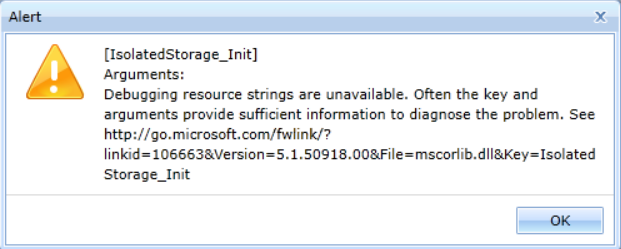
If you receive an error message similar to this one instead of a prompt for an Activation Code, please attempt the following:
- Close CDK.
- Navigate to your Windows Start Menu and search for the "Microsoft Silverlight" application.
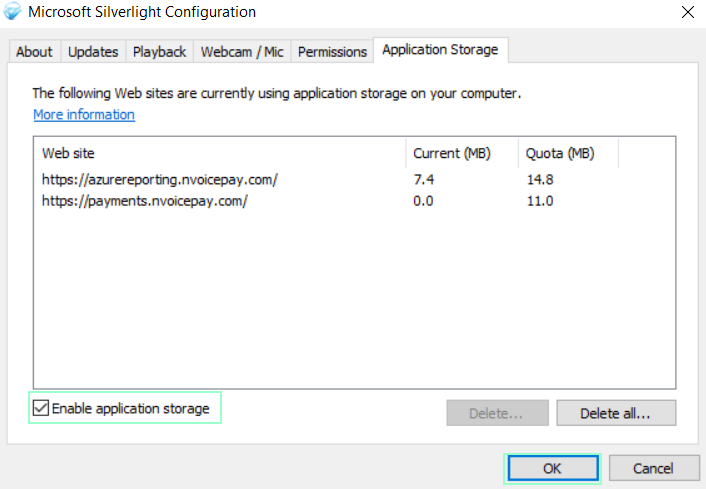
- Open the application and navigate to the Application Storage tab.
- Ensure that the box in the bottom, left labeled "Enable application storage" is checked, then press OK:
After completing these steps, reopen CDK and AP Assist again. If you continue to receive an error message instead of a prompt to enter your Activation Code, please reach out to Technical Support for further assistance.